
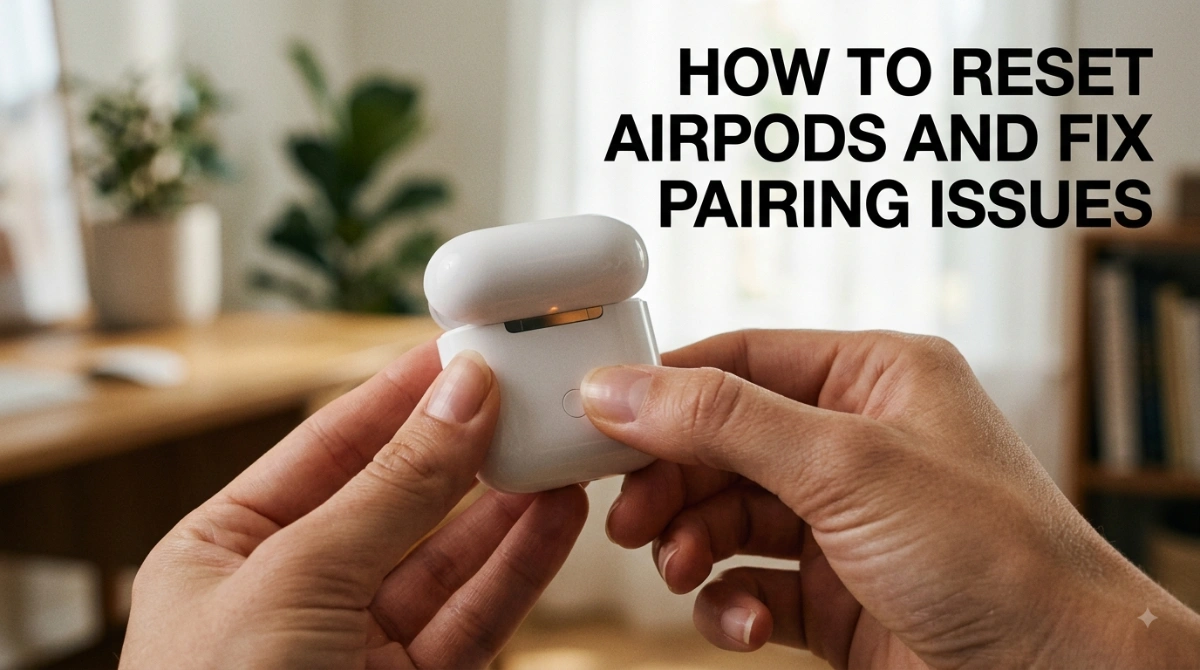
How to Reset AirPods: Easy Steps for All Models
If your AirPods will not connect, keep disconnecting, or are not behaving as expected, resetting them can clear their current pairing configuration and return them to setup mode. The exact method depends on your model.
Quick answer: how to reset AirPods
The reset process depends on which AirPods model you have:
- AirPods 1, 2, and 3: Put both AirPods in the case, close the lid for 30 seconds, open it, then hold the setup button on the back for about 15 seconds until the status light flashes amber and then white.
- AirPods Pro 1 and 2: Use the same rear setup-button procedure.
- AirPods 4: Use the front-of-case three-stage double-tap sequence.
- AirPods Pro 3: Use the front-of-case three-stage double-tap sequence.
- AirPods Max: Hold the Noise Control button and Digital Crown together for about 15 seconds until the LED flashes amber and then white.
After a successful reset, the AirPods can be paired with your device again.
Quick reset instructions by AirPods model
| Your model | How to reset | Confirmation |
| AirPods 1, 2, or 3 | Hold the setup button on the rear of the charging case | Status light flashes amber, then white |
| AirPods Pro 1 or 2 | Hold the setup button on the rear of the charging case | Status light flashes amber, then white |
| AirPods 4 | Use three timed double-taps on the front of the case | Status light flashes amber, then white |
| AirPods Pro 3 | Use three timed double-taps on the front of the case | Status light flashes amber, then white |
| AirPods Max | Hold the Noise Control button and Digital Crown together | LED flashes amber, then white |
The amber-to-white light sequence confirms that the reset is complete and the AirPods are ready to connect again.
When should you reset AirPods?
A reset is most useful for Bluetooth, pairing, and setup problems, particularly after you have checked that the AirPods and charging case have power and Bluetooth is enabled on your device.
Consider resetting AirPods when:
- Your AirPods do not connect or repeatedly disconnect.
- Your device cannot find the AirPods during pairing.
- You changed phones, tablets, or computers and cannot complete setup.
- The AirPods are still linked to an old Bluetooth connection.
- Basic steps such as charging the case, closing and reopening it, and restarting Bluetooth have not helped.
A reset may help with a software or connection issue. It will not repair physical damage, water damage, battery wear, a defective charging case, or a persistent speaker or microphone fault.
Prepare before resetting
Put both AirPods in their charging case, close the lid, and wait 30 seconds. This is the standard preparation step for resetting AirPods with a case.
If the AirPods appear in the Bluetooth settings on your paired iPhone or iPad, remove the existing connection before resetting:
- Open Settings and tap Bluetooth.
- Find your AirPods in the device list.
- Tap the information button beside their name.
- Select Forget This Device, then confirm.
If the AirPods are not shown in the device list, continue with the reset procedure.
On Android, Windows, or another Bluetooth device, forget or unpair the existing AirPods connection when it appears in paired devices. Then complete the reset and pair them again.
Reset vs. restart vs. forgetting your AirPods
These actions are related but are not the same.
- Reset: Clears the current pairing configuration and returns the AirPods to a state where they can be set up again.
- Forget or unpair: Removes the existing AirPods connection from your device’s Bluetooth settings.
- Restart: A temporary troubleshooting step rather than a full factory reset. For AirPods Max, an amber LED indicates a restart, while a full reset requires the longer button hold described below.
For a clean reconnection, you may need to forget or unpair the existing connection and then reset the AirPods before pairing them again.
How to reset AirPods 1, 2, and 3
Use these steps for AirPods 1, AirPods 2, and AirPods 3:
- Put both AirPods in the charging case and close the lid for 30 seconds.
- Open the charging-case lid.
- Press and hold the setup button on the back of the case for about 15 seconds.
- Release the button after the status light flashes amber and then white.
Your AirPods are now reset. Leave the case lid open to begin pairing them with a device.
How to reset AirPods Pro 1 and 2
AirPods Pro 1 and AirPods Pro 2 use the rear setup-button procedure.
- Put both AirPods in the charging case and close the lid for 30 seconds.
- Open the charging-case lid.
- Press and hold the setup button on the back of the case for about 15 seconds.
- Release the button after the status light flashes amber and then white.
After the reset is complete, leave the case open and pair the AirPods Pro with your device again.
How to reset AirPods 4 and AirPods Pro 3
AirPods 4 and AirPods Pro 3 do not have the standard setup button on the rear of the charging case. Use the front of the case instead.
- Put the AirPods in the charging case, close the lid, and wait 30 seconds.
- Open the lid.
- Double-tap the front of the case while the status light is on.
- Double-tap the front again when the light flashes white.
- Double-tap the front a third time when the white light flashes faster.
- Wait until the status light flashes amber and then white.
After the amber-to-white confirmation, the AirPods are reset and ready to reconnect.
How to reset AirPods Max
If AirPods Max are low on power or do not respond, charge them first. A restart may resolve a temporary issue, but a factory reset uses a longer button hold.
- Press and hold the Noise Control button and the Digital Crown at the same time.
- Continue holding both controls for about 15 seconds.
- Release them when the LED flashes amber and then white.
- Pair the AirPods Max with your iPhone, iPad, Mac, or another Bluetooth device again.
If the LED flashes amber only, that is a restart rather than a factory reset. Keep holding until it flashes white as well.
Connect your AirPods again after resetting
After resetting AirPods with a charging case, keep the earbuds inside and leave the lid open. Place the case near the device you want to use.
On an iPhone or iPad, follow the setup prompt that appears on screen.
For Android, Windows, and other Bluetooth devices:
- Make sure the case status light is flashing white. This means the AirPods are available to pair.
- Open your device’s Bluetooth settings.
- Turn Bluetooth on if needed.
- Select your AirPods from the available-device list.
- Complete any pairing prompt.
If your AirPods do not appear, close the case lid, wait briefly, reopen it, and repeat the appropriate model-specific reset procedure.
If your AirPods still will not reset
No status light
Charge the case and AirPods, then try the reset again. Confirm that both earbuds sit properly in the case and that the lid is fully open before starting the required reset sequence.
For older AirPods and AirPods Pro models, hold the rear setup button for about 15 seconds.
For AirPods 4 and AirPods Pro 3, follow all three front-of-case double-taps and wait for each light change before continuing.
The light does not flash white
The reset has not completed until the light flashes amber and then white. Close the lid, wait 30 seconds, and repeat the correct method for your model.
Reset completed, but pairing still fails
Forget the AirPods from your device’s Bluetooth settings, turn Bluetooth off and back on, then retry with the open case close to the device.
If possible, test the AirPods with another compatible device. If they cannot enter pairing mode or still fail to connect after charging and resetting, the problem may require service.
One AirPod still does not work
A reset may help if the problem is related to connection or pairing. If one AirPod continues to have no sound after resetting, check whether it is charging properly and consider whether cleanliness or hardware could be responsible.
What resetting AirPods can and cannot fix
Resetting AirPods clears the current pairing configuration and returns them to a state where they can be set up again. It is a practical fix for many connection and pairing problems.
It cannot fix every issue. A reset is unlikely to solve:
- Physical or liquid damage.
- A case or earbud that will not charge.
- Battery capacity loss from normal wear.
- Persistent one-sided audio caused by charging, cleanliness, or hardware problems.
- A defective microphone, speaker, or sensor.
When the same problem returns immediately after a reset, further troubleshooting or service is more appropriate than repeatedly resetting the AirPods.
Read more: How to reset AirPods
Frequently Asked Questions
The case status light should flash amber and then white. The white flashing light means the AirPods are ready to pair again.
For most AirPods and AirPods Pro models, close the lid for 30 seconds, then hold the rear setup button for about 15 seconds. AirPods 4 and AirPods Pro 3 also need the 30-second wait plus three double-taps on the case front.
AirPods 1, 2, and 3, plus AirPods Pro and AirPods Pro 2, use the setup button on the rear of the charging case. AirPods 4 and AirPods Pro 3 use front-of-case taps instead.
During the reset process, amber followed by white confirms that the reset completed. An amber flash by itself does not confirm a full reset.
Charge the AirPods and case, close the lid for 30 seconds, and repeat the exact reset process for your model. Make sure the case is open when you begin the reset sequence.
Yes. You can reset AirPods using their case controls, then pair them through Bluetooth settings on an Android phone, Windows PC, Mac, or another compatible device.
No. It removes the AirPods’ current pairing configuration; it does not erase your phone’s files, apps, photos, or other personal content.
It may help if the issue is related to connection or pairing. Persistent one-sided audio may instead involve charging, cleanliness, or hardware issues.
If they appear in the Bluetooth list on your iPhone, iPad, or another paired device, forgetting or unpairing them first helps create a clean new connection.
No. A restart produces an amber LED flash. A full factory reset requires holding the Noise Control button and Digital Crown until the LED flashes amber and then white.