
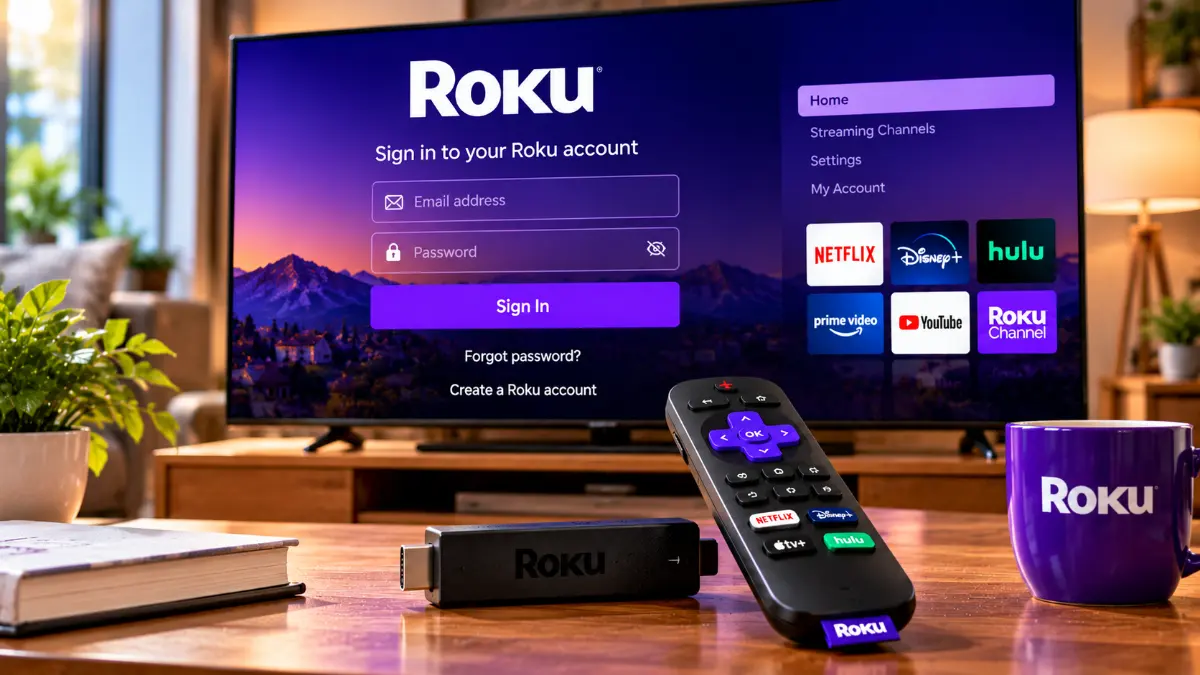
If your Roku login is not working, first identify where the problem occurs. An account password error, missing verification message, unfinished device activation, and sign-in failure inside Netflix are different issues. Check the email linked to your Roku account, use official password recovery if necessary, and follow the on-screen activation instructions for a new device.
1. Check the Email Associated With Your Roku
A correct password cannot open the account you expect if you are entering a different email address.
If the Roku home screen is available, navigate to Settings > System > About. Roku says the associated account email appears in this section. Compare it with the address you are using on the account website.
If the addresses differ, try the one listed on your device.
2. Recover a Forgotten Password
When the email is correct but the password fails, use the password-recovery instructions on my.roku.com. Follow the recovery message delivered to the registered email address and create a strong password if prompted.
If the registered mailbox is inaccessible, do not assume that another email address can automatically receive the reset link. Roku directs users who have lost access to their account email to its support team for assistance.
3. Resolve Two-Step Verification Problems
Roku’s account security can require a six-digit verification code emailed to the registered address after you enter your credentials. Look in spam or junk folders, check the correct mailbox, and request a new message if needed.
There is also a less obvious alternative. Roku says users with at least one streaming device linked to their account may be able to complete the challenge using the last five characters of a linked device ID. You can find the ID under Settings > System > About on a Roku device.
If you cannot receive the email or use an eligible device ID, Roku says you need to contact its support team. It may ask you to confirm account information before changing your email address. Never send verification codes to unsolicited callers.
4. Check That the Login Page Is Genuine
Official Roku account access begins at my.roku.com. Be suspicious of pages claiming your television is locked until you pay an activation fee or call an unfamiliar number.
Roku states that account creation, device activation, and Roku support do not require an activation charge. A payment-method prompt during legitimate setup does not itself mean you are being charged: Roku says charges occur only when you choose to purchase something later.
5. Finish New-Device Activation the Right Way
A new Roku TV or streaming player must be connected to the internet and linked to a Roku account.
During setup, connect to Wi-Fi and let any software update finish. Roku may then present an email-based activation process or a supported QR-code option.
For email activation, enter your address on the TV, open Roku’s message on a phone or computer, select the activation link, and choose the existing-account option if you already have one. Finish the instructions while leaving the television on the activation screen.
For QR-code activation, scan the code with your phone camera and follow the displayed official instructions.
6. Fix Missing or Expired Activation Links
An activation email can be delayed, filtered, or sent to a mistyped address. Before restarting setup, wait a few minutes and search your inbox for Roku. Check spam or junk folders too.
Roku’s official instructions say you can press the Star button on the remote at the activation screen and choose Resend activation link or Edit Roku email, when those options appear.
If the link has expired, request a fresh one rather than repeatedly opening the old message. Keep your TV on the activation screen until linking finishes; leaving that screen may interrupt the process.
7. Check Network and Setup Interruptions
A Roku device needs internet access to activate, retrieve updates, and reach online services. If activation stops repeatedly, confirm the Wi-Fi network name and password and see whether other devices can connect.
A television displaying an activation-related error does not prove the account password is wrong. An interrupted connection or unfinished update may be the actual cause.
If your home network is unavailable, restore its connectivity before requesting more activation emails.
8. Separate Roku Errors From App Sign-In Errors
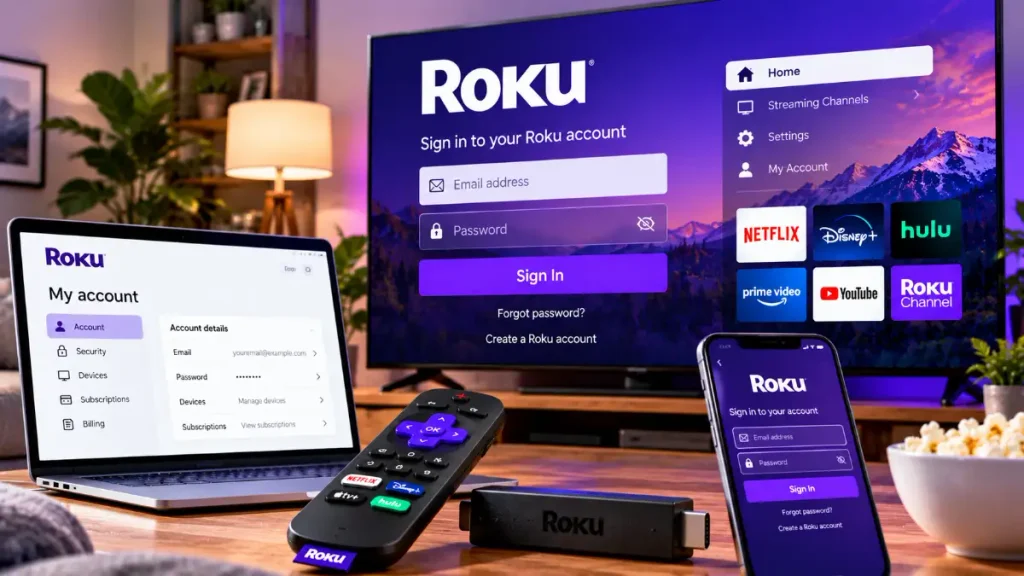
If your Roku home screen and other apps work, but one streaming service keeps asking for a password, investigate that service first. Netflix, Disney+, and other providers may have their own accounts, authentication procedures, and subscription requirements.
For example, changing your Roku password will not repair a forgotten Netflix password. Use that service’s own recovery tools. If an app is malfunctioning rather than rejecting credentials, follow Roku’s app-specific troubleshooting guidance or contact the streaming provider.
9. Save Factory Resetting for Appropriate Cases
A factory reset is a substantial change. Roku says it removes personal preferences, apps, and account information and unlinks the device, returning it to initial setup.
It may be appropriate before selling a device or when Roku’s guidance identifies reset as a suitable remedy for a persistent setup problem. It is not the appropriate first step for a forgotten website password or an expired activation email.
Quick Guide: Which Fix Should You Try?
| Symptom | Best first action |
| Account email is unclear | Check Settings > System > About |
| Password is rejected | Use official password recovery |
| Verification email is absent | Check mail or eligible device ID option |
| Activation email is missing | Resend or correct it on the TV |
| TV cannot reach online setup | Check Wi-Fi and updates |
| Only one streaming app fails | Check that app’s credentials or support |
When Roku Support Is Necessary
Contact official Roku Support if you cannot access the registered email, cannot complete available verification methods, or remain unable to link your device after following the official activation steps. Explain exactly which screen is failing and which troubleshooting steps you have already tried.
For errors limited to one third-party streaming app, that provider may be better positioned to help.
Conclusion
Work from the specific failure rather than treating every sign-in message as a Roku account problem. Confirm the email, recover the password, complete verification, and check activation or internet connectivity only when relevant. Preserve your existing device setup unless a reset is genuinely warranted.
Read more: Roku Login
Frequently Asked Questions
Why is Roku rejecting a password I believe is correct?
Check the account email first. If it matches, use official password recovery and ensure your browser is not inserting a saved old password.
What if I no longer have access to my Roku email?
Contact Roku Support. Roku says its team may help change the email after verifying the account information.
Can I verify without receiving Roku’s six-digit email code?
Eligible accounts with a linked streaming device may use the last five characters of a device ID as an alternative verification method.
Where do I find my Roku device ID?
On the Roku device, open Settings > System > About and locate its device ID.
Why has my Roku activation email not arrived?
Check spam folders and the entered address. Use the activation screen’s resend or edit-email option when available.
What should I do when a Roku activation link expires?
On the setup screen, press Star and request another activation link using the available menu option.
Does Roku charge money for activation?
No. Roku says creating an account and activating a device are free. Optional paid purchases are separate.
Why does Netflix work differently from my Roku account?
Netflix manages its own login credentials. Your Roku sign-in does not replace the password needed by that service.
Will resetting my Roku TV reset the account password?
No. A factory reset clears device information and requires setup again; password recovery is handled through the Roku account process.