
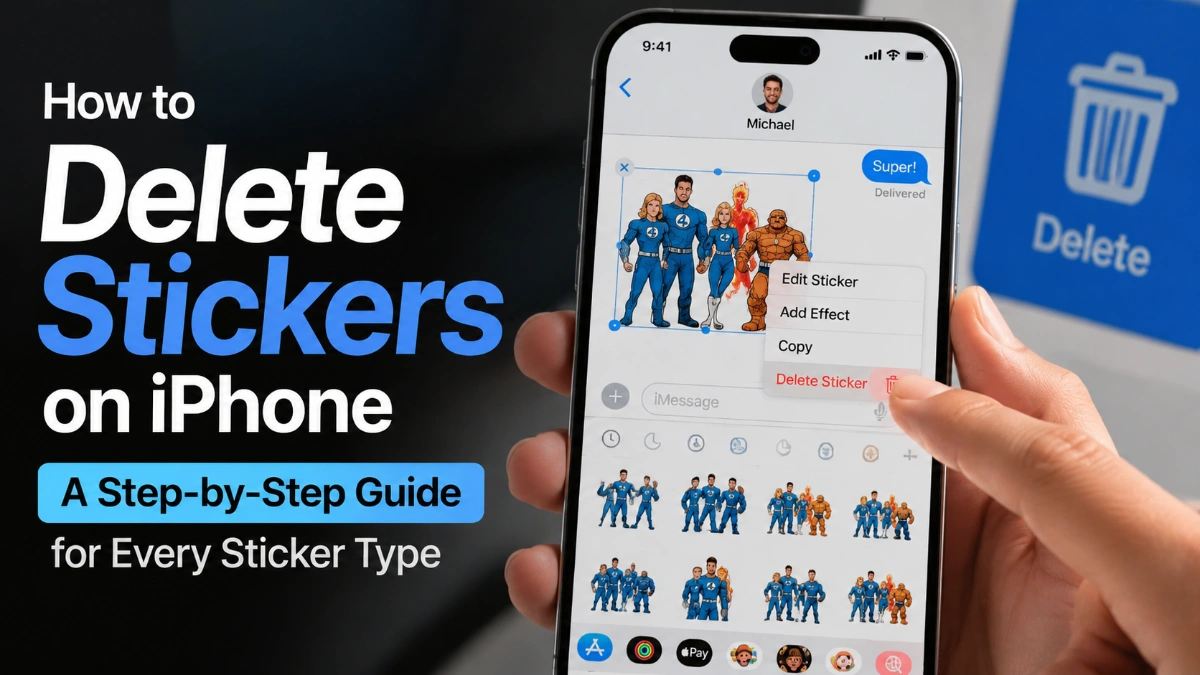
How to Delete Stickers on iPhone
The exact steps for how to delete stickers on iPhone depend on what kind of sticker you want to remove.
A sticker you created from a photo is managed differently from a sticker placed on a Messages bubble. Memoji stickers are tied to the Memoji that created them, while stickers supplied by third-party iMessage apps can be turned off separately.
Quick answer: If you want to delete a saved custom or Live Sticker, open Photos, open a photo, choose Edit > Markup > Add > Add Sticker, touch and hold the sticker, then tap Remove. If you want to remove a sticker that someone placed on a message bubble, use Sticker Details in Messages instead.
iOS note: Apple can change menu names and layouts between iOS releases. The instructions below follow Apple’s current support documentation available at the time of publication.
Match the sticker to the right removal method
| What you want to remove | Where you manage it | What happens |
| A saved custom or Live Sticker | Photos → Markup → Add Sticker | Removes the saved sticker from your sticker collection |
| A sticker placed on a message bubble | Messages → Sticker Details | Removes that sticker from the specific message bubble on iPhone |
| A Memoji sticker set | Messages → Memoji | Deleting the Memoji removes its associated sticker set |
| A third-party sticker app | Settings → Apps → Messages → iMessage Apps | Turns the app’s Messages integration off; deleting the app removes it from the device |
Apple’s current documentation confirms separate management paths for saved photo-based stickers, stickers placed on Messages bubbles, Memoji, and iMessage apps.
Delete a Saved Custom or Live Sticker
If you created a sticker from a photo or Live Photo and now want it gone from your sticker collection, you can remove it through the Photos app.
Steps to delete a saved sticker on iPhone
- Open Photos on your iPhone.
- Open any photo.
- Tap Edit.
- Tap the Markup button.
- Tap the Add button.
- Tap Add Sticker.
- Touch and hold the sticker you want to remove.
- Tap Remove.
Apple’s current iPhone guide gives this as the deletion path for stickers created from photos.
Your custom stickers can be used from the sticker menu in places such as Messages, and Apple says stickers sync through iCloud so they can be available on compatible devices signed in to the same Apple Account.
What happens when you remove a saved sticker?
Removing the sticker from its saved collection is different from simply removing a sticker from a message.
If you only want to remove a sticker that was placed over a message bubble, use the Sticker Details method described below instead.
Don’t Confuse Recents With Actual Sticker Deletion
One common reason people have trouble figuring out how to delete stickers on iPhone is that the sticker picker can show recently used stickers.
Removing or changing something you see in a recent-items area is not necessarily the same as deleting the underlying saved custom sticker.
For a sticker that you created from a photo, use the actual saved-sticker management path:
Photos → Edit → Markup → Add → Add Sticker → touch and hold the sticker → Remove.
If a sticker still appears somewhere after you thought you removed it, first determine whether you’re looking at:
- a saved custom or Live Sticker,
- a sticker attached to a message bubble,
- a Memoji sticker,
- or a sticker supplied by an iMessage app.
Each category has a different management method.
Remove a Sticker From a Message Bubble
If someone placed a sticker directly on top of a message bubble, you don’t need to delete the saved sticker itself.
Instead, you can remove that sticker from the message bubble through Sticker Details.
Steps
- Open Messages.
- Open the conversation containing the sticker.
- Touch and hold the message bubble with the sticker.
- Tap Sticker Details.
- Swipe left on the sticker you want to remove.
- Tap the Delete button.
Apple specifically documents this as an iPhone-only way to remove a sticker placed on a message bubble.
Does this delete the sticker everywhere?
No. This action is for removing the sticker from that particular message bubble. It does not mean you have deleted the corresponding saved sticker from your sticker collection.
That’s an important distinction:
- Saved sticker: Delete it through the sticker collection in Photos.
- Sticker placed on a message bubble: Remove it through Sticker Details.
Apple’s Messages guide describes the latter as deleting the sticker from the message bubble.
What if the sticker is covering text?
Apple also provides a way to see text covered by a sticker: double-tap the message bubble.
Delete a Memoji Sticker Set
Memoji stickers work differently from custom stickers made from photos.
Apple says a Memoji automatically becomes a sticker pack that can be used in Messages, Mail, and some third-party apps.
Because the stickers are associated with the Memoji, the way to remove that sticker set is to delete the corresponding Memoji.
Steps to delete a Memoji
- Open Messages.
- Start a new message or open an existing conversation.
- Tap the Plus button.
- Swipe up and tap Memoji.
- Swipe to the Memoji you want to remove.
- Tap the More button.
- Tap Delete.
Apple’s current Memoji instructions confirm that you can edit, duplicate, or delete an existing Memoji from this menu.
Can you delete just one Memoji sticker?
Not as an individual sticker from the Memoji pack.
Memoji stickers are generated from the Memoji character. If you delete that Memoji, its associated sticker set is removed as well.
If you want to keep the Memoji but simply stop using a particular sticker pose, you don’t need to delete the entire character. You can leave the Memoji intact and choose a different sticker when sending messages.
Remove or Disable Third-Party Sticker Packs
Some stickers come from third-party iMessage apps rather than Apple’s built-in sticker features.
If a sticker app keeps appearing in Messages and you don’t want to use it, you can turn that iMessage app off without necessarily deleting the app.
Turn off a third-party sticker app
- Open Settings.
- Tap Apps.
- Tap Messages.
- Tap iMessage Apps.
- Tap the sticker app to turn it off.
Apple’s current iMessage app documentation confirms this Settings path and says you can turn individual iMessage apps on or off.
What if you want to remove the app completely?
You can also delete the third-party app itself. Apple notes that iMessage apps can be deleted or removed from the Home Screen, and apps can be downloaded again from the App Store if you change your mind.
So there are two different choices:
Turn the app off:
Keeps the app installed but stops its iMessage integration.
Delete the app:
Removes the app from the iPhone.
What to Do If You Can’t Find the Delete Option
If you don’t see Remove or Delete, first identify which kind of sticker you’re looking at.
1. You’re looking at a saved custom sticker
Use:
Photos → Edit → Markup → Add → Add Sticker
Then touch and hold the sticker and tap Remove.
2. You’re trying to remove a sticker from a message bubble
Don’t look for the deletion control in the sticker picker.
Instead:
Touch and hold the message bubble → Sticker Details → swipe left on the sticker → Delete.
3. It’s a Memoji sticker
Memoji stickers are connected to a Memoji character. To remove the associated sticker set, manage or delete the Memoji itself.
4. It’s from a third-party iMessage app
Go to:
Settings → Apps → Messages → iMessage Apps
Then turn the relevant app off.
5. You’re using a different iOS version
Apple’s interface can change between iOS releases. If a button isn’t in exactly the location described above, look for the same feature under the corresponding Stickers, Markup, Memoji, or iMessage Apps controls.
Saved Sticker vs. Message Sticker: What’s the Difference?
This is the easiest way to choose the correct method.
| Situation | Use this method |
| You made a sticker from a photo and want it gone from your collection | Photos → Markup → Add Sticker → Remove |
| A sticker is sitting on top of a message bubble | Messages → Sticker Details → Delete |
| You don’t want a particular Memoji’s sticker pack anymore | Delete the associated Memoji |
| A downloaded sticker app keeps appearing in Messages | Turn off its iMessage app integration |
| You want the third-party sticker app completely gone | Delete the app |
The key is to identify where the sticker exists before trying to delete it.
Frequently Asked Questions
For saved photo-based stickers, Apple says your stickers sync with iCloud and are available on compatible devices where you’re signed in to the same Apple Account. Therefore, removing a saved sticker can affect its availability across those synced devices.
Yes. If the sticker has been placed on a message bubble, touch and hold the message bubble, tap Sticker Details, swipe left on the sticker, and tap Delete. Apple documents this particular sticker-removal action for iPhone.
You may have changed what appears in a recent or frequently used area without removing the underlying saved sticker.
For a custom sticker made from a photo, use the saved-sticker deletion path in Photos → Edit → Markup → Add → Add Sticker, then touch and hold the sticker and tap Remove.
Memoji stickers are generated from a Memoji character, so there isn’t a separate saved-sticker deletion process for removing one individual Memoji design from the pack. Deleting the Memoji removes its associated sticker set.
Go to Settings → Apps → Messages → iMessage Apps, then tap the relevant app to turn it off. You can leave the app installed if you only want to disable its Messages integration.
Apple’s current instructions for deleting a sticker placed on a message bubble specify the action for iPhone. The documented sequence is to touch and hold the message bubble, choose Sticker Details, swipe left on the sticker, and tap Delete.
Save adds a sticker to your own collection. Remove deletes a saved custom sticker from that collection. These are different actions.
For photo-based stickers, Apple provides the Remove control after you open the sticker collection through Photos and Markup.
Yes. Third-party iMessage apps are managed separately from Apple’s built-in sticker features. You can turn an individual iMessage app off or delete that app, while Apple’s other sticker features remain available.
Apple periodically changes iOS interfaces. The exact location or appearance of a control can differ by iOS version, device, and feature.